
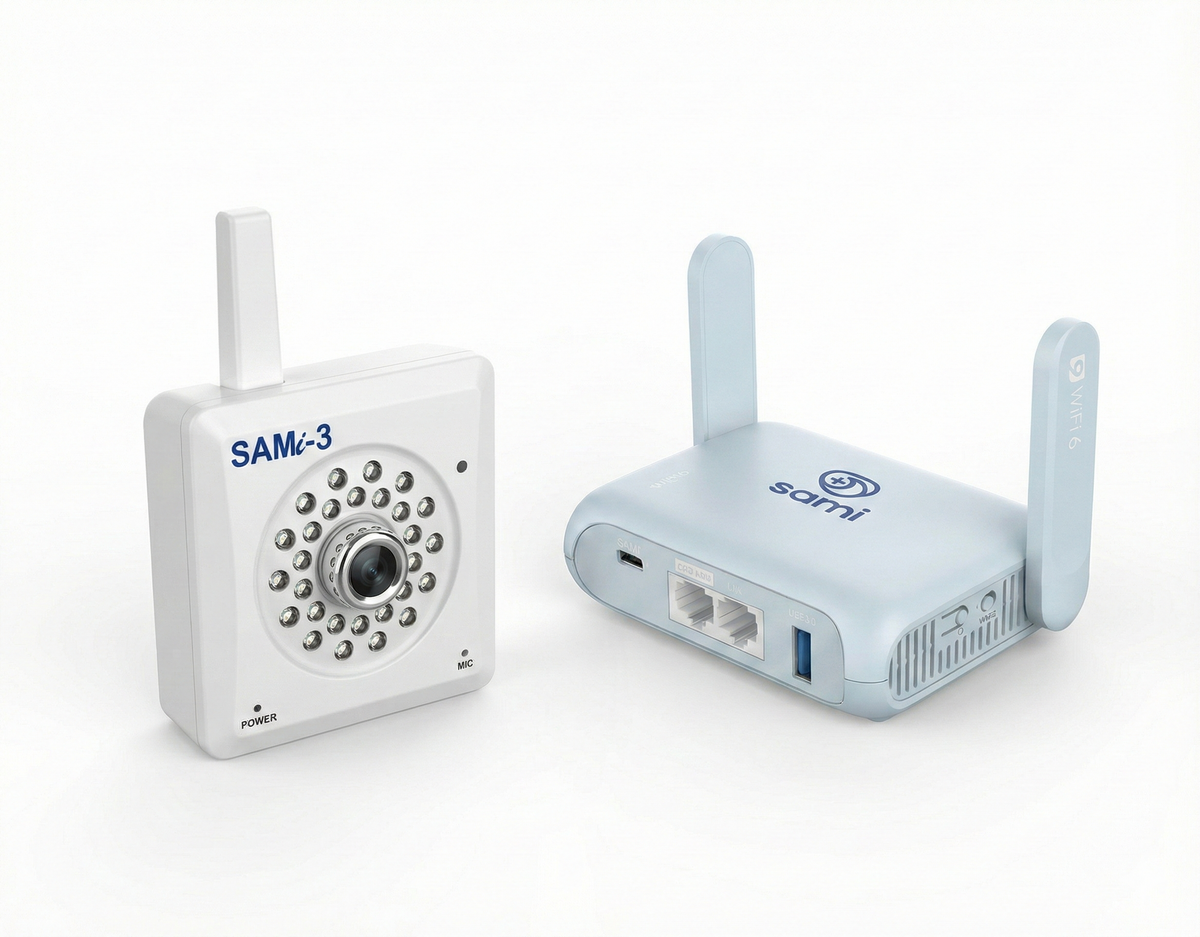
These instructions are for people who wish to use access the Internet while on the Sami-5G network.
Note:
The SAMi Hub broadcasts a WiFi network named SAMi-5G
The default WiFi password, also called the Key, is printed on the sticker on the bottom of the SAMi Hub.
Setup Instructions:
Step 1: Connect your iPhone or iPad to "SAMi-5G"
Go to Settings → Wi-Fi on your Apple Device
Select SAMi-5G (wait a little if you don't see if right away)
Enter the WiFi Password/Key: 19920801
Once your device shows it is connected to SAMi-5G, continue to Step 3: Open the SAMi Hub Admin Panel
Wifi Not Connecting?
If your Apple device doesn't accept the WiFi password, make sure you are entering it correctly
If you confirm it was entered correctly, try resetting your network settings: go to Settings > General > Transfer or Reset [Device] > Reset > Reset Network Settings
If you get a notification that says "The Wi-Fi network SAMi-5G" does not appear to be connected to the internet, click "Keep Trying Wi-Fi". We will connect it to WiFi in the steps below!
Important
After you are connected to "SAMi-5G", scroll to the bottom of the Wi-Fi settings page and set:
Ask to Join Networks → Ask
Why this matters
If this setting is not changed, your Apple device may automatically reconnect to your home WiFi (often overnight), which can disconnect you from the SAMi Camera.
Once your device shows it is connected to SAMi-5G, continue below.
Tip - The WiFi name and Key are printed on the sticker on the bottom of the SAMi Hub should you need to reference it in the future.
Step 3: Open the SAMi Hub Admin Panel
While still connected to SAMi-5G, open Safari or your preferred web browser.
In the address bar, enter 192.168.8.1
When prompted, enter the SAMi Hub admin password: sami19920801
Important
This admin password is NOT the same as the WiFi Password/Key. The WiFi Password/Key connects you to SAMi-5G. The admin password logs you into the Hub settings.
Step 4: Connect the SAMi Hub to your home WiFi using Repeater Mode
You will see a dashboard similar to one of the images above. Ignore everything except the section called Repeater.
Click on "Connect" or click on "Repeater," depending on what your image looks like.
A list of WiFi networks will load. Select your home WiFi network. Be patient if you don't see if right away.
Enter your home WiFi password.
Click "Apply" or "Join" (If you cannot see the Apply button, tap outside the password field to close the keyboard.)
You will be prompted with a success message. Ignore any messages about a VPN. You can close out this tab and begin monitoring.
Confirm Success
Wait until you see your home WiFi network name with a green dot and connection details displayed underneath. At that point, your SAMi Hub is now internet-enabled! You can always try opening a web browser and going to www.samialert.com to verify that the internet is working.
Recommendation
Keep only the devices you use to monitor connected to the SAMi Hub WiFi network "SAMi-5G".
Step 5: Go back to the Sami App and confirm you can reconnect to your Camera.
Confirm the Camera LED power light is green.
Confirm the monitoring iPhone or iPad is connected to SAMi-5G, not home WiFi.
If the full monitoring location is visible on screen, setup is complete.
If the camera does not connect automatically
Force quit the SAMi app.
Unplug both the SAMi Hub and the camera.
Plug the SAMi Hub back in first and wait until it is fully on.
Plug the camera back in. The camera light will start red, then turn green once connected.
Reopen the SAMi app.
If needed, recheck that the iPhone or iPad is still on the SAMi-5G WiFi network.
If you need assistance, please submit a support ticket: here
Other notes:
Internet Range
Your Sami Hub is internet-enabled as long as it is within range of the home WiFi network you connected it to. It is also important that the SAMi-5G WiFi signal reaches both the room where the SAMi Camera is located and the main room where you will use your iPhone or iPad to monitor. If your Apple device has trouble finding SAMi-5G or staying connected, place the SAMi Hub in a central location, ideally equally distanced between the camera and the primary monitoring room.
If your home internet goes out
Even if your home internet goes out, your Sami Hub can still keep your camera connected to your iPhone or iPad. Your iPhone or iPad must stay connected to SAMi-5G at all times to remain connected to the camera.
Traveling with your Sami Hub and Camera
You can travel with the camera and SAMi Hub anywhere you have power. Unplug both, bring them with you, plug both into power, then connect your iPhone or iPad to the SAMi-5G WiFi network, and your system will work locally.
The Sami Hub will only be internet-enabled when it is within range of the WiFi network it was originally configured to work with. To change the internet network your SAMi Hub is connected to, follow these instructions: Traveling with Your Sami Hub
* Important safety information: if you are using SAMi with a young child or baby, visit www.babymonitorsafety.org.
* Strangulation Hazard: Keep the cord out of the baby's reach. Never place the camera or cords within three feet (one meter) of a crib.
* Overheating Risk: Keep the camera clear of curtains and bed coverings. Only use the SAMi-3 Camera with the supplied AC power adapter.
Disclaimer
Sami is a nocturnal movement monitor and will detect all types of movement regardless of the movement’s origin. Sami Technologies, Inc. does not guarantee the effectiveness of Sami for any particular application and use of Sami is solely at your own risk. Sami has not been evaluated or approved by the U.S. Food and Drug Administration or any other government agency for any purpose. Sami is not a medical device and is not intended for use in the prevention, diagnosis, mitigation, treatment, or cure of any disease or other conditions. Always seek the advice of your physician or other qualified health provider with any questions you may have regarding a medical condition.
Comments
0 comments
Please sign in to leave a comment.