
These instructions are intended for people who own a Sami Complete Kit 2!
If you did not receive an iPad as part of your order, please follow these instructions instead:
SAMi-3 Camera Setup Guide (Home Wi-Fi)
[INSERT SAMI HUB KIT INSTRUCTIONS]
Overview
You will set up the SAMi Hub first, so that it is internet-enabled, then plug in the camera, connect the SAMi app, and place everything where it needs to go.
The SAMi Hub creates a dedicated WiFi network called "SAMi-5G" that your iPhone or iPad will use for monitoring. During setup, you will connect the SAMi Hub to your home WiFi using Repeater mode, which is designed to connect the router to an existing WiFi network.
What is included
If anything is missing or damaged, please reach out to support using this link with photos and a description of the damaged or missing components: Submit a support request
1) SAMi 3 Camera (In-Box)
-
Camera dual-use mount bracket and stand
4 bracket command strips
2 bracket wall anchors
2 bracket screws
4 bracket rubber feet
6 camera cord clips
AC power adapter, white
Universal plug adapters, EU, UK, AUe
Ethernet cable
MicroSD to SD card adapter
2) SAMi Hub
SAMi Hub device
Power adapter
USA plug converter attachment
Ethernet cable
Paper SAMi Setup Guide with QR code
3) Apple iPad
- Apple iPad
- Apple charger
What you need:
Your home WiFi name and password
Tip
For the smoothest setup, do the entire setup on the iPad you ourchased use to monitor. You can always add additional Apple devices later on.
SAMi Hub at a Glance
WiFi Name and Password
The SAMi Hub broadcasts a WiFi network named SAMi-5G
The default WiFi password, also called the Key, is printed on the sticker on the bottom of the SAMi Hub.
Ports & LED Indicators

Detailed Setup Instructions:
Step 1: Setting up your new Apple iPad (Internet Required!)
The first thing you will want to do before getting your SAMi Camera connected is to set up your new Apple iPad. If you have never set up an Apple device before, don't worry! It is an easy process that only takes a couple of minutes. We have included an information video that walks you through the process step-by-step.
Please note that you will need access to the internet to set up your iPad!
Important: Before you begin setting up your new Apple iPad, there are a few settings that you MUST get correct during the setup process. We have listed those settings below. Please review them and have this article open for reference while watching the setup video. Each time one of these settings comes up in the setup video, make sure you choose the correct option. If you accidentally choose the wrong setting, DON'T WORRY! You can always adjust these settings later on, but it helps to get it right the first time.
Settings to Select During iPad Setup
Turn on the iPad by pressing and holding the button on top. Next, connect the iPad to the USB charger using the cord included in your iPad box.
Note: We recommend leaving the iPad connected to the charger as much as possible during use. Battery life varies from 2-3 hours when monitoring, so having it plugged in ensures that your SAMi app will be able to run for the entire time you are monitoring!
Then proceed to the setup:
Below are the settings throughout the process that you should select. Any settings not listed below are optional and are up to you if you want to set them up or not. In most cases, you can skip and set them up later if you please.
- Quick Start - choose "Set Up Manually" like in the video
- Choose a Wi-Fi Network - use your home Wi-Fi network
- Apps & Data - select "Don't Transfer Apps & Data"
- Apple ID - if you already have an Apple ID, you can use your existing Apple ID to log in. If you do not have an Apple ID, click on "Forgot password or don't have an account?" and create an Apple ID following the on-screen prompts to "Create a Free Apple ID".
- Location Services - Enable Location Services
Here is the video to watch: Setting Up An iPad
Once you have the iPad set up, proceed to the next step:
Step 2: Power on the SAMi Hub
To begin, bring your iPad, SAMi Hub and SAMi Camera to the room where you will set up the camera. Then follow the steps below.
Remove the SAMi Hub from the sleeve.
Raise the two antennas.
Assemble the power plug by aligning the slots and turning clockwise until it clicks.
Plug the power adapter into the port labeled 5V⎓3A on the back of the SAMi Hub, then plug it into a wall outlet.
Wait for the Hub to start up.
Open the WiFi settings on the iPad you are using to monitor and look for the WiFi network name "SAMi-5G".
Step 3: Connect your iPad to "SAMi-5G"
Go to Settings → Wi-Fi on your Apple Device
Select SAMi-5G (wait a little if you don't see if right away)
Enter the WiFi Password/Key: 19920801
Once your device shows it is connected to SAMi-5G, continue to Step 3: Open the SAMi Hub Admin Panel
Wifi Not Connecting?
If your Apple device doesn't accept the WiFi password, make sure you are entering it correctly
If you confirm it was entered correctly, try resetting your network settings: go to Settings > General > Transfer or Reset [Device] > Reset > Reset Network Settings
If you get a notification that says "The Wi-Fi network SAMi-5G" does not appear to be connected to the internet, click "Keep Trying Wi-Fi". We will connect it to WiFi in the steps below!
Important
After you are connected to "SAMi-5G", scroll to the bottom of the Wi-Fi settings page and set:
Ask to Join Networks → Ask
Why this matters
If this setting is not changed, your Apple device may automatically reconnect to your home WiFi (often overnight), which can disconnect you from the SAMi Camera.
Once your device shows it is connected to SAMi-5G, continue below.
Tip
The WiFi name and Key are printed on the sticker on the bottom of the SAMi Hub should you need to reference it in the future.
Step 4: Open the SAMi Hub Admin Panel
While still connected to SAMi-5G, open Safari or your preferred web browser.
In the address bar, enter 192.168.8.1
When prompted, enter the SAMi Hub admin password: sami19920801
Important
This admin password is NOT the same as the WiFi Password/Key. The WiFi Password/Key connects you to SAMi-5G. The admin password logs you into the Hub settings.
Step 5: Connect the SAMi Hub to your home WiFi using Repeater Mode
You will see a dashboard similar to one of the images above. Ignore everything except the section called Repeater.
Click on "Connect" or click on "Repeater," depending on what your image looks like.
A list of WiFi networks will load. Select your home WiFi network. Be patient if you don't see if right away.
Enter your home WiFi password.
Click "Apply" or "Join" (If you cannot see the Apply button, tap outside the password field to close the keyboard.)
You will be prompted with a success message. Ignore any messages about a VPN. You can close out this tab and begin monitoring.
Confirm Success
Wait until you see your home WiFi network name with a green dot and connection details displayed underneath. At that point, your SAMi Hub is now internet-enabled! You can always try opening a web browser and going to www.samialert.com to verify that the internet is working.
Recommendation
Keep only the devices you use to monitor connected to the SAMi Hub WiFi network "SAMi-5G".
Important notes before you continue...
Internet Range
Your SAMi Hub is internet-enabled as long as it is within range of the home WiFi network you connected it to. It is also important that the SAMi-5G WiFi signal reaches both the room where the SAMi Camera is located and the main room where you will use your iPhone or iPad to monitor. If your Apple device has trouble finding SAMi-5G or staying connected, place the SAMi Hub in a central location, ideally equally distant between the camera and the primary monitoring room.
If your home internet goes out
Even if your home internet goes out, your SAMi Hub can still keep your camera connected to your iPad. Your iPad must stay connected to SAMi-5G at all times to remain connected to the camera.
Traveling with your SAMi Hub and Camera
You can travel with the camera and SAMi Hub anywhere you have power. Unplug both, bring them with you, plug both into power, then connect your Pad to the SAMi-5G WiFi network, and your system will work locally.
The SAMi Hub will only be internet-enabled when it is within range of the WiFi network it was originally configured to work with. To change the internet network your SAMi Hub is connected to, follow these instructions: Traveling with Your SAMi Hub
Step 6: Plug in the SAMi Camera and confirm it powers on
Now that your SAMi Hub is connected, we'll get your SAMi camera connected.
Take the camera to the room where you will be placing it. We'll work on camera positioning in a later step!
Plug in the SAMi camera using the provided white power adapter. If possible, use a surge protector for the SAMi Camera.
Confirm that the power light on the front of the camera changes from red to green. Be patient, this can take up to 3 minutes!
-
If the camera does not turn green after 3 minutes, reset the camera:
Use an opened paper clip and gently press the reset button on the side of the camera for 1 second, then release.
The power light should cycle off, then red, then green.
Tips
When the power light is green, this generally means the camera is connected to the SAMi-5G network. Be patient if it takes time to connect and find the network!
Step 7: Install the SAMi app and connect to the camera
Click this link to download the SAMi-3 App from the Apple App Store, or you can open the App Store on the iPad and search for "SAMi3 Sleep Activity Monitor."
Confirm your iPhone or iPad is connected to the SAMi-5G WIfi network.
Open the SAMi app and follow the in-app setup until you see live view.
-
When prompted, allow:
Location Services: Allow While Using App
Local Network access: this must be allowed for the app to work
Important
To monitor, your Apple device must remain on the same WiFi network as the camera. In this case, the SAMi-5G network. If you have trouble connecting, make sure any VPN on your device is turned OFF.
Step 8: Keep your monitoring device on SAMi-5G overnight
The most common cause of disconnects is the iPhone or iPad switching back to home WiFi.
Turn Auto Join on for SAMi-5G.
-
If your device ever switches off SAMi-5G during the night, turn Auto Join off for your home WiFi on that monitoring device:
Open Settings
Tap WiFi
Tap the i icon next to your home WiFi
Turn Auto Join off
Step 9: Position your SAMi camera
When positioning your camera, it helps to think of it like the human eye.
The closer the camera is to the individual sleeping, the more pronounced the movement appears to the camera. Smaller motions look bigger and are easier for the camera to detect.
The further away the camera is, the less pronounced the movement appears. Subtle motion can look smaller and may be harder to detect.
Use this idea when deciding how close to place the camera.
If you are trying to monitor for more subtle motion, placing the camera closer can help.
If you are trying to monitor for full-body movement and a full bed view, you will usually place the camera farther back, such as on the wall at the foot of the bed or even on the ceiling. If you place the camera too close and later decide you want a wider view, you will need to physically reposition the camera.
Here are some examples:
Abnormal movements in the body
(full body, torso, legs, arms, etc.)
|
Ideal Positioning |
Also OK |
Abnormal movements in the face
(face grimacing, lip smacking, etc.)
|
Ideal positioning |
Probably OK But not great |
Finish placement using one of these options
Option 1: Place the camera on a flat surface
Use the provided bracket as a stand. Attach the camera to the bracket, then attach the included clear rubber feet to the bottom of the bracket for stability.
For detailed written instructions on attaching your bracket, click here
For detailed written instructions on using the included wire guides, click here
Option 2: Mount the camera on the wall or ceiling
Mount the Camera on the wall or ceiling, click here
Option 3: Using a SAMi Camera Stand or Clamp
If you purchased a SAMi Camera Floor Stand, click here
If you purchased a SAMi Camera Clamp, click here
Safety Note
We highly suggest using a surge protector when plugging your camera into an outlet. Keep cords, cord clips, and other small parts out of reach of infants and young children to prevent choking or strangulation hazards.
Step 10: Confirm setup was successful
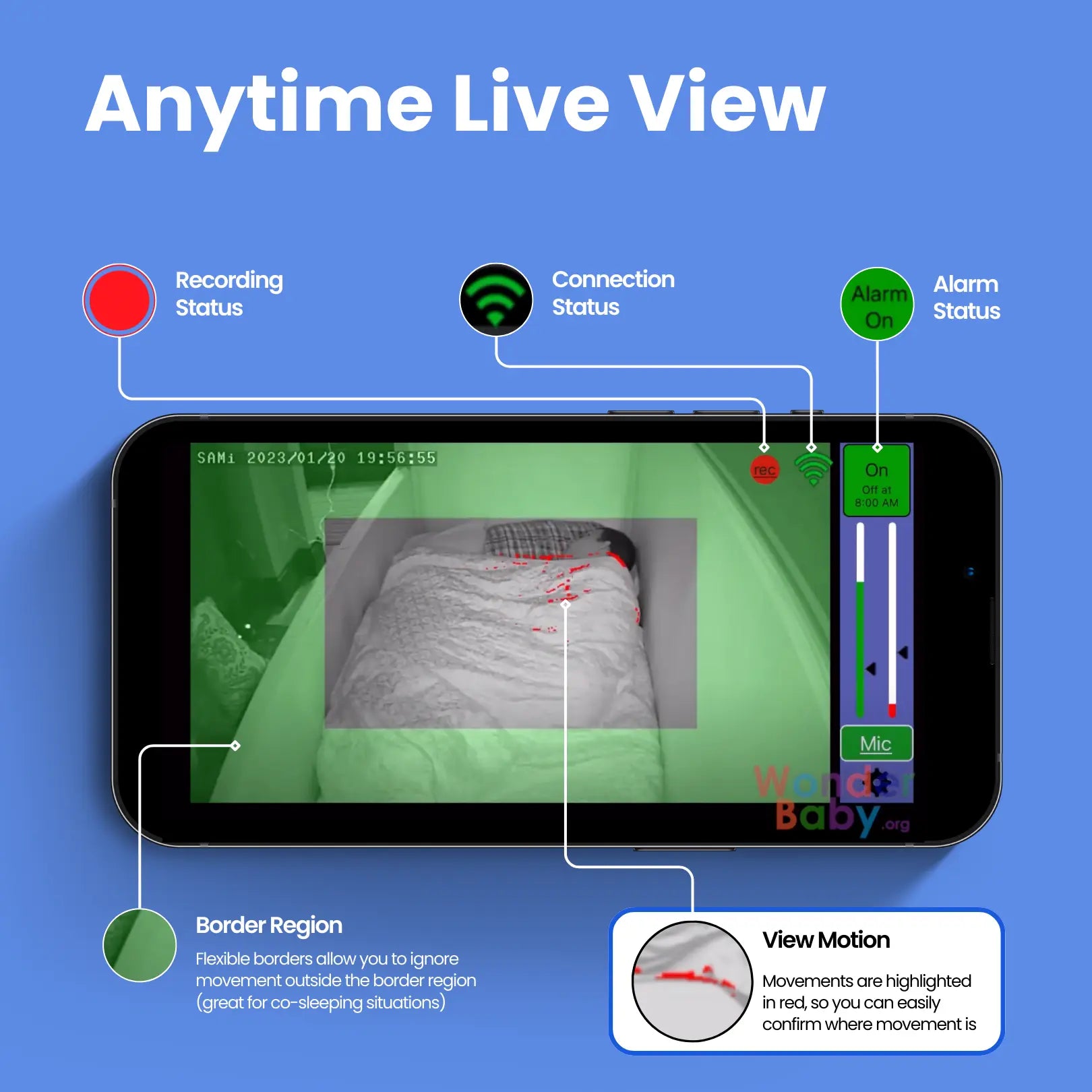
Confirm the camera LED power light is green.
Confirm the monitoring iPad is connected to SAMi-5G, not home WiFi.
Open the SAMi app and confirm the camera is aimed at the correct monitoring location.
If you need to adjust the view, use the correct adjustment for your setup: loosen the ball joint on the camera bracket, or adjust the gooseneck on the camera stand or clamp. Then reposition the camera to the desired angle.
If the full monitoring location is visible on screen, setup is complete.
Congratulations, your SAMi is ready for use!
If the camera does not connect automatically
Force quit the SAMi app.
Unplug both the SAMi Hub and the camera.
Plug the SAMi Hub back in first and wait until it is fully on.
Plug the camera back in. The camera light will start red, then turn green once connected.
Reopen the SAMi app.
If needed, recheck that the iPhone or iPad is still on the SAMi-5G WiFi network.
If you need assistance, please submit a support ticket: here
Important Next Step: Adjust your settings for the first time!
To reduce false alarms and customize SAMi for your specific needs, follow our guide here: SAMi Settings Guide: Adjusting Your SAMi Settings For The First Time
* Important safety information: if you are using SAMi with a young child or baby, visit www.babymonitorsafety.org.
* Strangulation Hazard: Keep the cord out of the baby's reach. Never place the camera or cords within three feet (one meter) of a crib.
* Overheating Risk: Keep the camera clear of curtains and bed coverings. Only use the SAMi-3 Camera with the supplied AC power adapter.
Disclaimer
SAMi is a nocturnal movement monitor and will detect all types of movement regardless of the movement’s origin. HiPass Design LLC. does not guarantee the effectiveness of SAMi for any particular application and use of SAMi is solely at your own risk. SAMi has not been evaluated or approved by the U.S. Food and Drug Administration or any other government agency for any purpose. SAMi is not a medical device and is not intended for use in the prevention, diagnosis, mitigation, treatment, or cure of any disease or other conditions. Always seek the advice of your physician or other qualified health provider with any questions you may have regarding a medical condition.
Comments
0 comments
Please sign in to leave a comment.